Guide
How to open & unzip ZIP files on iPad & iPhone
iPadOS can unzip ordinary .zip files on its own — but it gives you no preview and no way to pull out a single file. Here’s the built-in method and a more selective one.
Free · 1.3 MB · iOS/iPadOS 16+ · No ads, no subscription
The built-in way (Files app)
Open the Files app
Navigate to the folder that holds your .zip file.
Long-press the .zip
Touch and hold the file, then choose Uncompress. A new folder appears beside it.
That’s it — when it works. But there’s no preview and you can’t extract a single file. That’s where 7zen is useful for ordinary, unencrypted ZIP archives.
The better way (7zen)
Install 7zen (free)
Open the .zip in 7zen
Tap the file, or use 7zen from the share sheet, to browse what's inside.
Preview, then pick
Tap any file for a full-size preview, and choose to extract everything or just the files you want.
Save anywhere
Send extracted files to Files, iCloud Drive, AirDrop, or any other app.
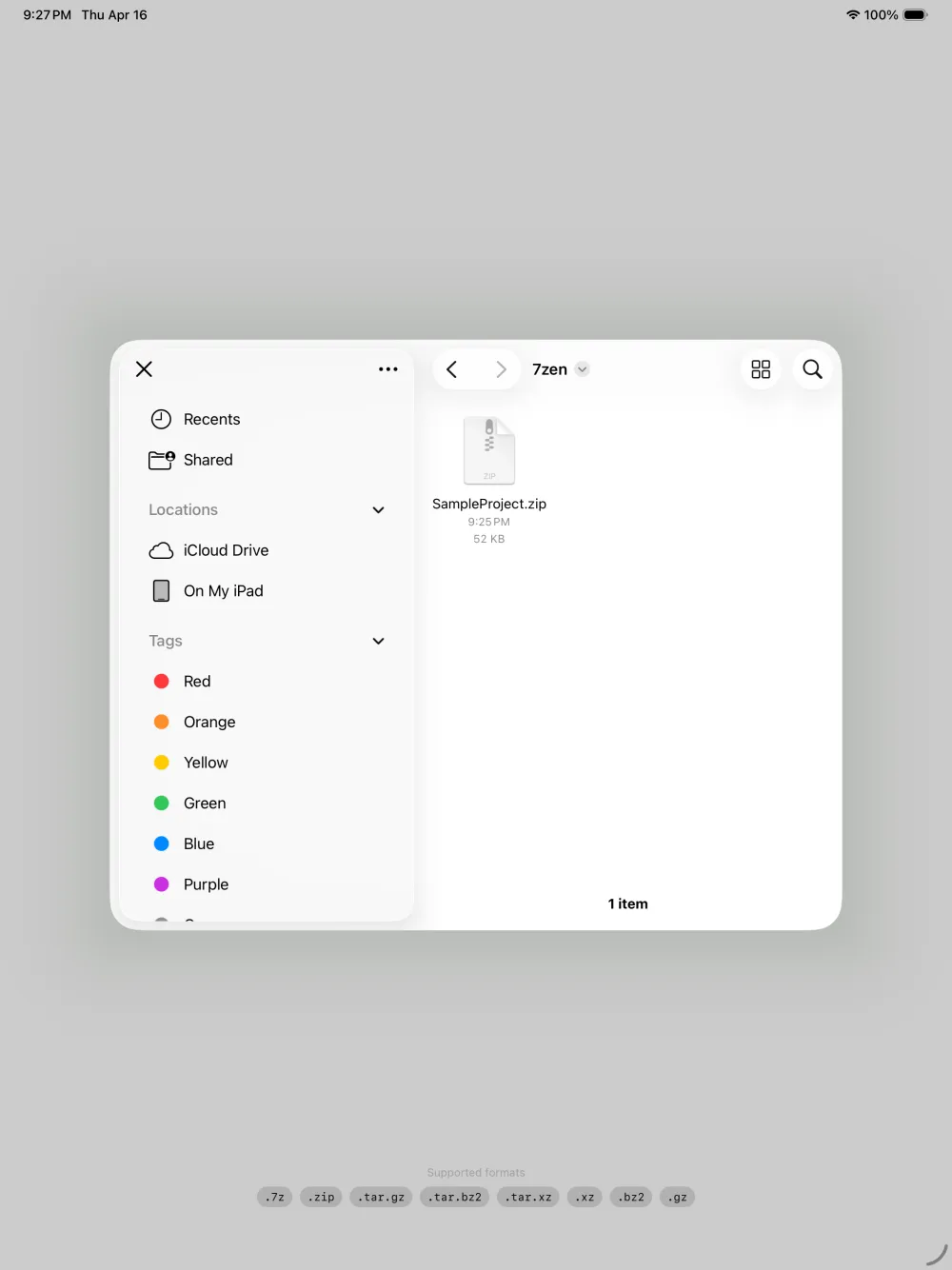
Not a ZIP after all?
If your "zip" is really another format, 7zen opens those too:
Frequently asked questions
Can the iPad open ZIP files without an app?
Often, yes — the Files app can unzip many ordinary .zip files by long-pressing and choosing Uncompress. 7zen adds content browsing, previews, and individual-file extraction for unencrypted ZIP archives.
Why won’t a ZIP open in the Files app?
The ZIP may be incomplete, damaged, unusually encoded, or password-protected. 7zen opens ordinary unencrypted ZIP archives, but the current public version does not open encrypted ZIP files.
Can I extract just one file from a ZIP?
Yes. Unlike the built-in Uncompress, 7zen lets you preview the contents and extract only the files you actually want.
Is 7zen free?
Yes — completely free, with no ads, no in-app purchases, and no subscription, on iPhone and iPad (iOS/iPadOS 16+).